
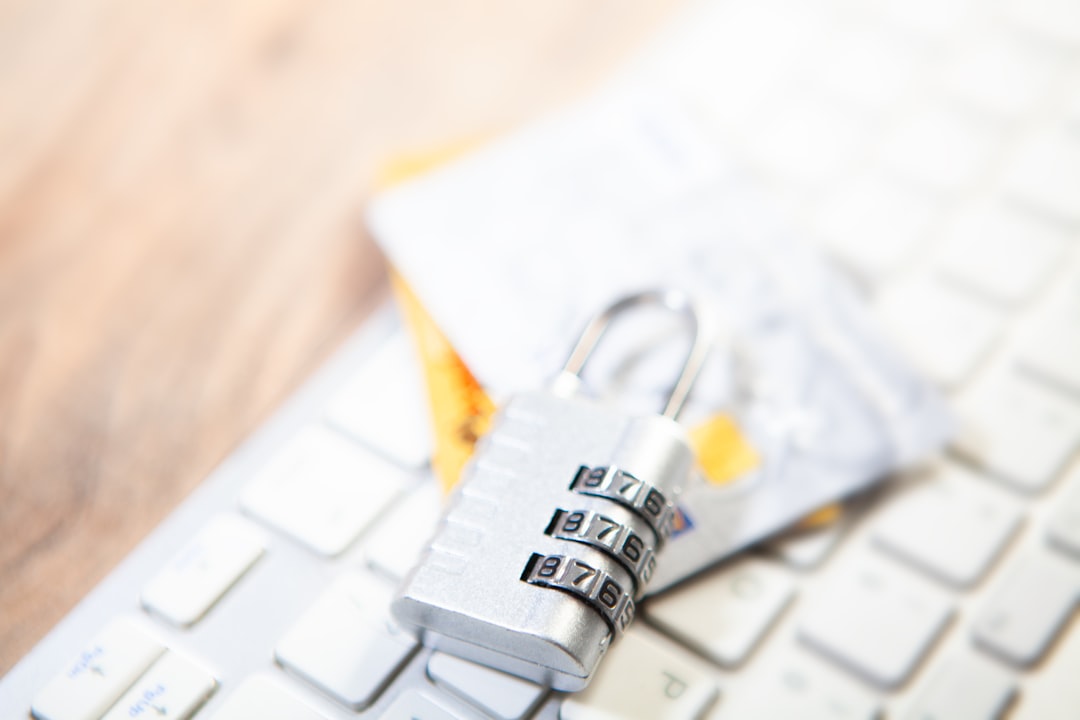
Struggling with weak, forgotten, or compromised passwords? This list gives practical steps to create strong passwords and protect them across devices and accounts.
Use a Password Manager to Remember Everything
Password managers generate and store complex, unique passwords for every account, so you do not have to memorize them. They also fill login forms automatically, saving time while reducing the temptation to reuse easy passwords.
Choose a reputable manager with zero-knowledge encryption and multi-factor support. Set a strong master password and back up the vault securely so you can recover access if your device is lost.
Pro Tip: Use a password manager with a browser extension and mobile app, then lock the vault with biometric unlock for convenience.
Build Long, Unique Passphrases
Long passphrases made of unrelated words or a short sentence are both easier to remember and much harder to crack than short complex strings. Aim for at least 12 characters, and prefer length over forced symbol substitutions.
Mix in capitalization or a deliberate misspelling to increase entropy without sacrificing memorability. Avoid common quotes, song lyrics, or predictable patterns.
Quick Tip: Create a mental image or story for your passphrase to lock it into memory while keeping uniqueness.
Enable Two-Factor Authentication Everywhere
Two-factor authentication adds a second layer, so a stolen password alone cannot unlock your account. Use an authenticator app or hardware token rather than SMS when possible, because apps are more resistant to interception.
Enable 2FA on email, financial services, social media, and any admin panels you manage. Keep a secure backup method in case you lose your primary device.
Expert Insight: Register a hardware security key for your most critical accounts to block phishing that tricks you into entering one-time codes.
Avoid Reusing Passwords Across Accounts
Reuse turns a single breach into multiple account takeovers. If one site leaks credentials, attackers try the same email and password combination elsewhere, giving them quick wins.
Create unique passwords for each site and store them in your password manager. If you find reused passwords, update the most sensitive accounts first, like email and banking.
Insider Tip: Run a breach check from your password manager or a trusted breach notification service to prioritize password changes.
Use Account Recovery Settings Wisely
Recovery options can be an attacker’s shortcut into your account, so secure them as tightly as your passwords. Review backup email addresses, phone numbers, and security questions for accuracy and strength.
Prefer recovery codes stored offline or in your password vault, and remove outdated recovery channels linked to old devices or addresses. Treat recovery codes like secondary passwords.
Heads Up: Replace weak or guessable security questions with answers you store in your password manager as random strings.
Treat Email Like the Master Key
Email accounts often control password resets for many services, making them a high-value target. Protect your main email with a very strong password, enabled 2FA, and strict recovery settings.
If you use separate emails for different roles, limit which accounts can reset others and keep a clean, secure primary address for critical services. Monitor your inbox for unfamiliar reset requests.
Worth Knowing: Create a dedicated recovery email that is secured just as strongly as your main account to reduce risk.
Create Site-Specific Variations
If you prefer memorized passwords, use a consistent base phrase plus a short, unique modifier for each site. The modifier can be derived from the site name combined with a pattern only you know.
Keep the core long and secret, and vary the modifier enough that one compromise does not reveal the system. Avoid obvious patterns like adding the site name directly.
Pro Tip: Use the first and last letter of the site plus a number you rotate to generate modifiers that are easy to recall and hard to guess.
Rotate and Retire Old Passwords Regularly
Changing passwords periodically reduces the window of opportunity for persistent attackers. Focus rotations on high-risk accounts after a breach or if you suspect compromise.
Retire passwords that have been shared, used across sites, or exposed in breach reports. Use your password manager to generate new credentials and update autofill records.
Quick Tip: Schedule quarterly reviews of critical accounts in your calendar to make password hygiene a regular habit.
Protect Passwords on Mobile Devices
Mobile devices are convenient but risky if left unsecured. Use device-level protection like screen locks, biometric authentication, and full-disk encryption to safeguard local access to credentials.
Avoid typing passwords on public Wi-Fi without a VPN, and keep apps updated to patch vulnerabilities. Disable backups of sensitive vaults to cloud services unless they use end-to-end encryption.
Expert Insight: Turn off clipboard access for password apps where possible to prevent apps from reading copied credentials.
Watch for Phishing and Social Engineering
Phishing remains the easiest way for attackers to get passwords, by tricking users into entering credentials on fake pages. Hover over links, verify sender addresses, and be skeptical of urgent password reset notices.
Train yourself to verify login prompts by navigating directly to the service rather than clicking links. Use browser protections and a password manager that detects fake forms to block credential theft.
Insider Tip: When in doubt, open your password manager and use its saved login entry to reach the site, which prevents credential entry on impostor pages.
Store Backups Securely and Offline
Keep emergency access options like printed recovery codes or encrypted USB backups in a secure physical location. Online backups that are not encrypted can expose your vault if the storage provider is breached.
Encrypt backup files with a strong passphrase and store copies in separate, secure places. Test your recovery process occasionally to ensure you can regain access without surprises.
Heads Up: Label physical backups discreetly and avoid including direct account details, instead store encrypted files with instructions you can follow in a crisis.
Ready to Lock Down Your Accounts?
Implementing these steps will dramatically reduce your risk and simplify password management over time, while giving you clear recovery options. Which single change will you make this week to strengthen your password strategy?